Note
This documentation contains a lot more technical terms and assumes some level of engine knowledge. If you would like a step by step approach to understanding the examples, you should navigate to the Scripting Examples page.
Overview
Response Objects are the backbone of any logic within this system. At it’s core it’s a modified instanced UObject. This allows us neat features, like the ability to construct them in place in the details panel, but also to have functionality we can expose and use in Blueprints. By default, these objects don’t do much, however special measures have been implemented that allow these objects to have knowledge of the level they’re in, and even have the capability to tick, allowing blueprint extendable, potentially persistent frame based behaviours.
A good example of this is the classic Tween response, which makes use of the persistent ticking to be able to infinitely oscillate between 2 points. By controlling the enabling and disabling of tick, as well as each object being responsible for the execution of the next, it allows us to control when responses happen and in what order. This comes at a slight disadvantage however, allowing only one chain of responses to be in flight at the same time. Further explorations may implement a queueing system, but as of now it is not feasible.
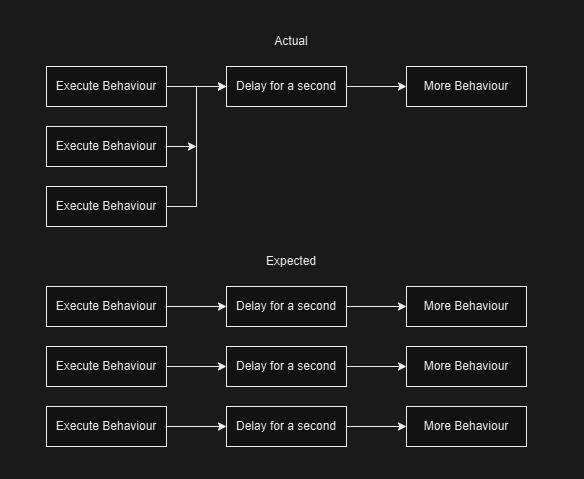
Consider this: You have a custom Blueprint response currently in flight, yet it makes use of a delay node before succeeding. In Blueprints repeated calls to this node are ignored, not queued up, meaning if within that delay you set off two more response chains you would end up with this response executing once perfectly, and 2 half complete responses. This could be disastrous for other responses, or the game in general, with no good way to undo the damage. As such, an execution chain must complete fully before a new one can start. Not a problem under normal circumstances, but causes issues for such cases.
Blueprint API
The basis of all Blueprint exposed behaviour is contained within two overridable functions:
Receive Executeis a function that is called as soon as an response is called from it’s owning component.Successshould nearly always be called at the end of it, except in some specific ticking circumstances such as waiting for a tween. It contains two parameters:Instigatoris the Actor that initially started this response via the broadcast. If an actor calledTestTrigger1broadcasts an event andTestResponse1receives it, thenTestTrigger1is the instigator. This can be null, and it’s validity should be ensured before using it.Dispatcheris the Actor that owns theResponse Componentexecuting this response. In the above example, TestResponse1 would be the Dispatcher as it owns thePTEventComponent. This should never be null and can be used safely.
Tickis a function that executes every frame, providedEnableTickhas been called somewhere inReceive Execute.EnableTicktakes a single parameter, which controls if this object should persist it’s ticking after success. In most tweening cases this would be no, but for something like a constant spawner, it would be yes.Tickonly has a single parameter, the delta time from the last frame executed. If you need access to theInstigatororDispatcherhere, consider caching them somewhere inReceive Execute.
Responses
Note
Responses that specifically activate something on another component can be tempermental at times. This is due to Unreal’s method of getting component references through
FComponentReference. If such a response isn’t working, make sure the engine hasn’t reset the component reference.
Warning
Similarly to the above, the component reference is not good at referring to itself. If you want to alter something such as a material, it is ideal to do so with a secondary actor that contains the response component. Failure to do so may result in the response not working.
Activate Component Response
This response will activate any component passed into it, on any blueprint. For this to work properly, unless using it’s toggle behaviour, the component must set Auto Activate to false. For activating visuals on components, refer to the Change Visibility Response instead.
Parameters:
Component To Activate- The component on another actor that should be activatedActivation Type- Can be either toActivate,Deactivate, orFlipFlopbetween the two statesForce Reset- Should the component reset on activation, behaving as if it has just started play again
Change Material Response
This response can change a material on a static mesh belonging to a static mesh component. It will not allow for assigning dynamic materials.
Parameters:
Static Mesh Component- The component containing the static mesh you wish to changeMaterial- The material you wish to change toMaterial Index- If the mesh has multiple material slots, which one do you wish to change. In most cases this would be slot 0
Create Widget Response
This response creates a widget and adds it to the viewport of the local player. Configurable to automatically destroy the widget after a certain time period.
Parameters:
Widget Class To Spawn- The widget class that should appear on screenAuto Destroy- Should this widget destroy itself automaticallyAuto Destroy Delay- The time this widget should destroy itself after
Delay Response
This response delays for the specified time before continuing on to the next one. Useful to setup gaps in logic.
Parameters:
Delay Amount- The amount of time to wait before continuing
Destroy Actor Response
This response can either destroy a single actor, or multiple actors. It contains functionality to delay between subsequent actor destructions, as well as delaying before the first one.
Parameters:
Actor Destruction Method- Can be a single actor, or multipleActor To Delete- Only present if destroying a single actor. Is the actor you want to removeActors To Delete- Only present if destroying multiple actors. Are the actors you want removingDelay Between Actor Destruction- Only present if destroying multiple actors. The amount of time to wait between actorsDelay Before First Destruction- Only present if destroying multiple actors. Whether to apply the delay before the first actor.
Play Sound Response
Allows the user to play a fire and forget sound at it’s constant volume, or whether to play it at a location with attenuation.
Parameters:
Sound- The sound wave to playAudio Spawn Rules- Can be eitherGlobal,At Location,On Specific ActororOn Responding ComponentActor To Spawn On- Only present if spawning on a specific actor, defines the actor to spawn atLocation- Only present if spawning at a specific location, defines the exact world location to spawn atRotation- Only present if spawning at a specific location, defines the exact rotation to spawn the sound atVolume Multiplier- How much to affect the default volume by. Defaults to it’s standard volumePitch Multiplier- How much to affect the pitch by. Defaults to it’s standard pitchStart Time- How far through the sound it should play at. Defaults to the startAttenuation Settings- The attenuation settings to use for this sound. Defaults to NoneConcurrency Settings- The concurrency settings to use for the sound. Defaults to NoneIs UI Sound- Should this sound be treated as a sound in UI
Spawn Actor Response
Spawns a specified actor class at a specified position. If you just wish to spawn a static mesh, use the Spawn Static Mesh Response instead.
Parameters:
Actor Class To Spawn- The class to spawnActor Spawn Rule- Can be spawned at anExact Location,Spawn On Responding ComponentorSpawn On ActorSpawn Transform- Only present if usingExact Location, gives an exact world transform to spawn atActor To Spawn On- Only Present if usingSpawn On Actor, allows setting of the actor to spawn onSpawn Offset- Only present if not usingExact Location, allows setting an offset to apply to the actor’s location
Spawn Static Mesh Response
A duplicate of the Spawn Actor Response. This allows spawning of a specific Static Mesh Actor.
Parameters:
Static Mesh To Spawn- The mesh to spawnActor Spawn Rule- Can be spawned at anExact Location,Spawn On Responding ComponentorSpawn On ActorSpawn Transform- Only present if usingExact Location, gives an exact world transform to spawn atActor To Spawn On- Only present if usingSpawn On Actor, allows setting of the actor to spawn onSpawn Offset- Only present if not usingExact Location, allows setting an offset to apply to the actor’s location
Spawn VFX Response
Allows spawning of a Niagara VFX System at a certain location.
Parameters:
VFX Spawn Rules- Sets how this should spawn, eitherAt LocationorAttachedto another actor.Niagara System- The Niagara system to spawnAttach To Component- Only present if usingAttached, sets the component this should attach toAttach Point Name- Only present if usingAttached, sets the name of the socket to attach to. Can be emptyLocation Type- Only present if usingAttached, sets the attachment behaviourLocation- The world location to spawn this system at. Can change based on theLocation TypeRotation- The rotation this system should spawn atScale- Only present if usingAt Location, sets the scale this system should spawn atAuto Destroy- Whether this system should auto destroy when completePooling Method- How the engine should pool the Niagara SystemsAuto Activate- Whether to automatically activate the system. Should probably be left truePre Cull Check- Whether this system should be pre-culled
Toggle Component Visibility Response
Works similarly to the Activate Component Response. If a component is invisible, it will become visible, and vice versa. Only useable with Scene Components.
Parameters:
Component To Activate- The Scene Component to activate
Trigger Event Response
Takes a gameplay tag and broadcasts it through the Event Subsystem. Allows chains of responses to fire easily.
Parameters:
Gameplay Tag- The tag to broadcast
Tween Object Response
Allows an actor to “tween” (move between) two points. Can affect location, rotation or scale. Will either report success on reaching destination if going one way, or instantly if infinitely oscillating.
Parameters:
Tween Target- Can either beSelf, orOther ActorActor To Tween- Only present if usingOther Actor, specifies the object that should be tweenedTween Type- Can either beLocation,RotationorScaleEnd Position Settings- Only present if usingLocation, controls how to interpret the end location, can either beExact Locationfor a world position, anOffsetto it’s own position, or at the position of anOther ActorEnd Position- Only present if tweeningLocation, and not using the position ofOther Actor. Can either be exact world co-ordinates or an offsetEnd Actor- Only present if tweeningLocationand using the position ofOther Actor. Sets the actor to move toEnd Rotation- Only present if tweeningRotation, specifies an absolute rotation to tween towardsEnd Scale- Only present if tweeningScale, specifies an absolute scale to tween towardsOscillate- Whether to stop at the end, or move constantly between both pointsEase In Out- Whether the tween should be constant, or speed up and slow down at the start and ends respectivelyInterpolation Speed- The speed at which you can move between points